Superhuman is an email client that promises to cut the time you spend in your inbox in half. It uses keyboard shortcuts, AI-powered triage, and a clean interface to help you process messages faster than Gmail or Outlook. The app has built a loyal following among founders and executives who swear by its speed, but it comes with a $30 per month price tag that makes many people pause. I spent three weeks using Superhuman as my primary email client to see if the productivity gains justify the cost, and whether the features you get are genuinely faster than free alternatives.
At a glance
What it is: A speed-focused email client for Gmail and Outlook with keyboard shortcuts and AI features. Best for: High-volume email users who value time savings over cost and are willing to learn new workflows. Pricing: $30 per month per user. Strength: Keyboard-driven interface processes emails significantly faster than traditional clients. Limitation: High monthly cost with no free tier or lower-priced plan.
What makes Superhuman different from regular email
Superhuman replaces your existing email client, whether that's Gmail in the browser, Apple Mail, or Outlook. You connect your Gmail or Outlook account during onboarding, and from that point forward you use Superhuman to read, send, and organize all your messages. The core difference is speed. Every action in Superhuman has a keyboard shortcut, and the interface strips away most of the sidebar clutter you see in Gmail.
The app opens to your inbox with a single email centered on screen. You press E to archive, H to snooze until later, or Cmd+K to open a command palette where you can type any action. If you want to move a message to a folder, you hit L and start typing the folder name. Composing a new email is Cmd+K followed by typing "new." The entire workflow is designed so your hands never leave the keyboard, which genuinely does make processing a hundred emails feel faster than clicking through Gmail's interface.
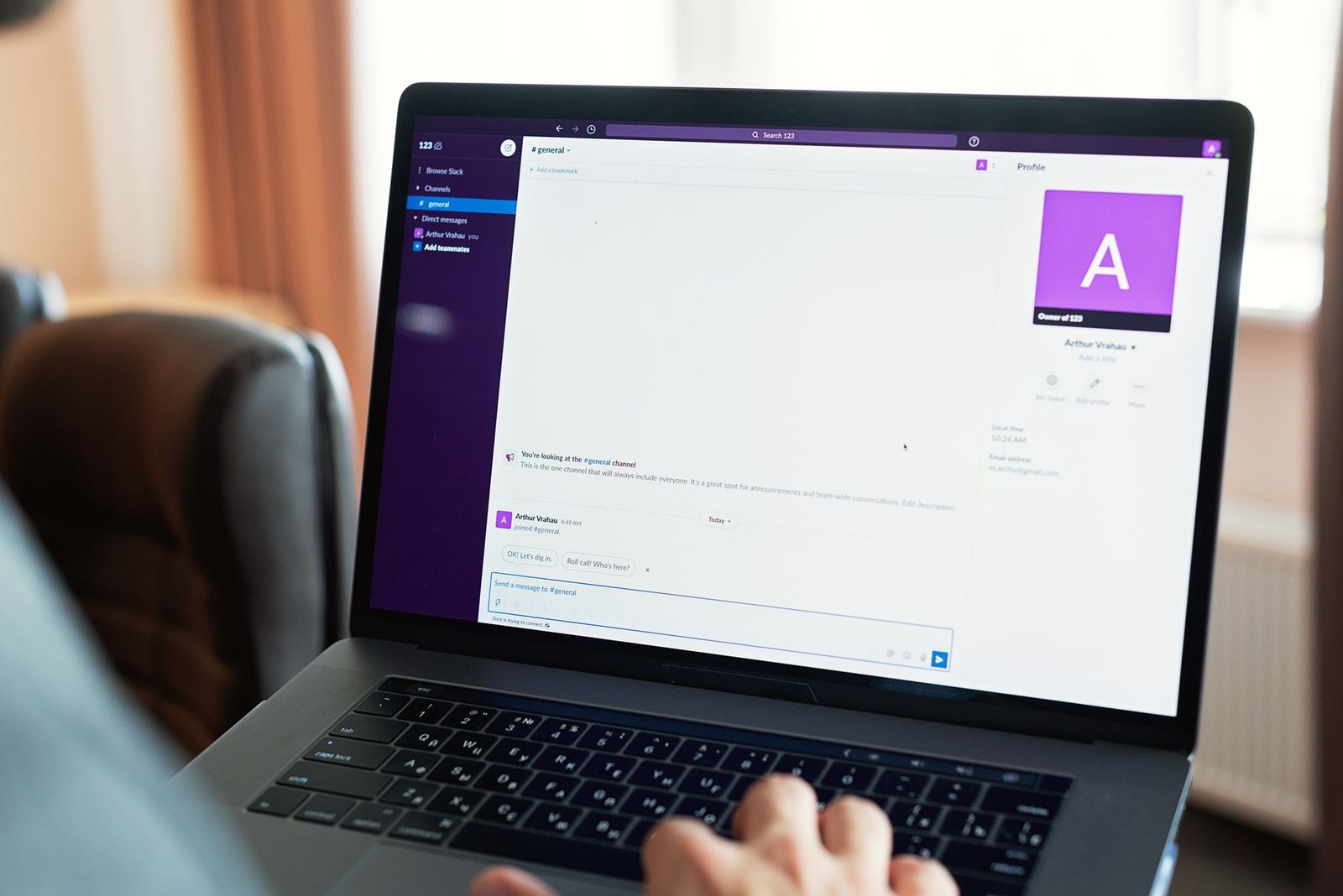
AI features include smart subject line suggestions when you compose, reminders if you promised to follow up but didn't, and automatic snippets that expand common phrases. The AI Triage feature scans your inbox and highlights the most important messages based on observable patterns: how often you have replied to a sender, whether your name appears directly in the message body, and whether a thread is a first-contact message or an ongoing conversation. In practice it correctly pushed newsletters and automated notifications to low priority and surfaced direct emails from clients I communicate with regularly. It occasionally misranked messages from contacts I emailed only infrequently, and you cannot inspect or adjust the ranking logic beyond marking individual senders as Always Priority or Never Priority. It is not a configurable rules engine; it adapts over time based on your behavior but does not surface its reasoning.
The onboarding process deserves mention because it's mandatory and somewhat polarizing. New users book a one-on-one video call with a Superhuman trainer who walks you through the shortcuts and customizes your settings. This takes about 30 minutes. Some people appreciate the hand-holding; others find it intrusive and unnecessary for what is, at its core, an email client. You cannot skip this step, which means you can't just sign up and start using the app on your own schedule.
Real-world speed gains and daily workflow
I tested Superhuman by routing all my work email through it for three weeks, processing roughly 80 to 120 messages per day. The speed difference is real. Once you internalize the shortcuts, you move through emails noticeably faster than in Gmail. The single-email focus prevents the skimming and distraction that happens when your entire inbox list is visible. You deal with the message in front of you, make a decision, and move to the next one.
The feature I used most was Split Inbox, which automatically sorts messages into categories like "Important," "To Do," and "Everything Else" based on rules you set. I configured it to flag anything from my direct reports or clients as Important, and to separate internal updates into a separate view. This meant I could clear the Important bucket first thing in the morning, then batch-process the rest later. The workflow feels closer to inbox zero than the chaos of a unified Gmail inbox.
Snippets saved time on repetitive emails. I created shortcuts for common replies like meeting confirmations and project status updates. Typing ;meeting expanded into a full paragraph with calendar link placeholders. Over the course of a week at 80 to 120 daily messages, this probably saved 10 to 15 minutes total. That estimate is volume-dependent; someone processing far more repetitive emails per day would see proportionally larger savings, while a low-volume sender would notice almost nothing.
The read statuses feature shows you when someone opens your email, similar to tools like Mailtrack. The Verge reported privacy concerns around this feature in 2019, and Superhuman responded by making read receipts opt-in and adding indicators so recipients know they're being tracked; note that this report dates from 2019 and Superhuman's current opt-in implementation may have changed since then. In practice, I found this feature less useful than expected because many email clients now block tracking pixels, so you get inconsistent data.
The mobile app for iPhone mirrors the desktop shortcuts with swipe gestures and a simplified interface. Swiping right archives, left snoozes, and you can swipe up to see more options. It's faster than tapping through Gmail's mobile interface, though the gesture learning curve means you'll archive things by accident during your first few days.
Who should actually pay for this
Superhuman makes sense for a specific type of user: someone who receives 50 or more emails per day, values their time at a high enough rate that saving an estimated 30 minutes per week, extrapolated from the 10 to 15 minutes of snippet and shortcut-driven savings observed in testing, justifies $30 per month, and is motivated enough to learn a new set of keyboard shortcuts. That typically means founders, executives, sales reps, or consultants who live in their inbox and bill their time at premium rates.
If email is a central bottleneck in your workday, the productivity gain is measurable. Per Superhuman's stated figures, users report handling email in roughly half the time once they master the shortcuts, though this is self-reported by the vendor and not independently verified. For someone billing $200 per hour, saving three hours per month pays for the subscription several times over. The math changes if you're a freelancer with lower rates or an employee whose company won't reimburse the cost.
The app is not a good fit if you're a casual email user, if you prefer mouse-based navigation, or if you already have a working system in Gmail with filters and labels. Superhuman doesn't add features that Gmail lacks; it reorganizes the features Gmail already has into a faster interface. If your current email volume doesn't overwhelm you, the speed gains won't feel worth the cost or the learning curve.
Teams can use Superhuman across multiple users, but there's no volume discount. A five-person sales team pays $150 per month total. Some companies absorb this as a productivity tool expense; others balk at paying more for email than they do for project management or CRM software.
How Superhuman compares to free and lower-cost alternatives
Spark is the closest no-cost substitute for individual users. It has a smart inbox that separates newsletters from personal email, keyboard shortcuts for common actions, and a team sharing tier at roughly $7 per user per month. Its shortcut set is less comprehensive than Superhuman's command palette and there is no rule-based Split Inbox equivalent, but for users who spend under an hour a day on email the speed gap is modest relative to the $30 price difference. Spark also supports IMAP accounts, which Superhuman does not, making it the practical option for anyone not on Gmail or Outlook.
Front and Help Scout are a different category. Both are team shared-inbox tools designed for support queues, message assignments, and internal collaboration rather than individual processing speed. Front starts in the $19 per user per month range and adds shared drafts, internal comments, and assignment rules. Help Scout is similarly priced and adds a help desk layer on top of shared email. Neither comes close to Superhuman's per-message speed for individual use, but both are better suited when the goal is coordinating email across a team rather than clearing a personal inbox faster. Superhuman has no native shared-inbox or assignment features.
Gmail with shortcuts enabled is the zero-cost baseline. Its built-in shortcut set covers archiving, composing, replying, and labeling, and power users can process a reasonably high volume with it. The practical gap from Superhuman is that Gmail's shortcuts sit on top of a visual layout built for mouse navigation, so multi-step actions like snoozing or triage still require more keystrokes than their Superhuman equivalents. Gmail also lacks AI-based inbox prioritization and Split Inbox as native features.
Where it falls short
The price is a genuine barrier with no entry tier
Superhuman costs $30 per month with no free plan, no trial period you can start on your own, and no lower-cost tier for individuals or students. You must go through the onboarding call before you can use the app at all, which means you're committing time before you even see the interface. Most productivity tools offer a 7- or 14-day trial you can explore independently. Superhuman's approach locks out anyone who wants to test-drive the app before paying or who simply can't afford $360 per year for an email client. PCMag's review noted this pricing as a significant limitation, especially when free alternatives like Spark and Gmail offer many of the same organizational features. For teams, the per-user cost is harder to justify because Superhuman offers no shared snippet libraries or template distribution; each person on a sales or support team maintains their own shortcuts in isolation, with no way to push a standard set of responses across accounts.
Keyboard shortcuts create a steep learning curve and exclude some users
The entire value proposition rests on learning and internalizing dozens of keyboard shortcuts. If you're used to clicking through menus or prefer touch and mouse navigation, Superhuman's interface feels hostile rather than helpful. The app does include a shortcut cheat sheet you can pull up anytime, but you won't see real speed gains until the commands become muscle memory, which takes most users one to two weeks of daily use. People with mobility issues, RSI, or conditions that make rapid keyboard use uncomfortable will find the app actively harder to use than a traditional mouse-driven client. There's no accessibility mode or alternative navigation path that delivers the same speed.
You're locked into Gmail and Outlook with no IMAP support
Superhuman only connects to Gmail and Outlook accounts. If you use a custom domain email hosted on a provider that only offers IMAP access, or if your company uses an email system other than Google Workspace or Microsoft 365, Superhuman won't work at all. This excludes freelancers and small businesses using hosting providers like Namecheap or Bluehost with basic email, as well as anyone on privacy-focused services like ProtonMail or Fastmail. The lack of IMAP support is a deliberate design choice to enable some of the speed optimizations, but it means a sizable portion of potential users can't even try the app regardless of price.
FAQs
Can you use Superhuman with multiple email accounts?
Yes, you can connect multiple Gmail or Outlook accounts to a single Superhuman subscription and switch between them using Cmd+2, Cmd+3, and so on. Each account appears as a separate inbox, and you can set different Split Inbox rules for each one. However, you pay one $30 monthly fee per user, not per account, so adding a second work email or a personal Gmail doesn't increase your cost.
Does Superhuman work offline?
Superhuman requires an internet connection to load and send emails. It caches recently viewed messages so you can read them without connectivity, but you can't compose, search, or process your inbox offline. This is different from traditional desktop email clients like Outlook or Thunderbird that download all your mail locally. The web-based architecture is part of what enables the speed, but it means you lose access entirely if you're working on a plane without Wi-Fi or in an area with unreliable internet.
What happens to your emails if you cancel Superhuman?
Your emails remain in your original Gmail or Outlook account exactly as they were before you started using Superhuman. The app doesn't migrate or store your messages separately; it's a client that connects to your existing account. If you cancel, you simply switch back to using Gmail in the browser, Apple Mail, or whatever client you prefer. Any labels, folders, or filters you created through Superhuman stay in your Gmail account because they're standard Gmail labels, not proprietary Superhuman metadata.
Can teams share templates or snippets in Superhuman?
No, Superhuman does not include team-wide snippet libraries or shared templates. Each user creates their own snippets locally, and there's no way to distribute a standard set of responses across a sales or support team. If you want your team to use consistent email templates, you'll need to manually copy and paste the snippet text into each person's Superhuman account or use a separate tool. This is a notable gap compared to tools like Front or Help Scout that are designed for team email workflows.
Is Superhuman better than using Gmail with keyboard shortcuts?
Gmail has its own set of keyboard shortcuts you can enable in settings, and power users already use them to archive, label, and compose quickly. Superhuman's advantage is that the entire interface is designed around shortcuts, so the workflow is faster and less cluttered. Gmail's shortcuts still require you to navigate visual elements like the sidebar and category tabs, and some actions like snoozing or moving to specific labels take more keystrokes. Superhuman also adds features like Split Inbox and AI triage that Gmail doesn't have natively. Whether the difference is worth $30 per month depends on your current speed in Gmail and your email volume.
Bottom line: Use Superhuman if you process 50-plus emails daily, bill your time at rates where saving hours per month justifies $360 per year, and you're motivated to master keyboard-driven workflows. Skip it if you're a casual email user, if your company won't cover the cost, or if you need IMAP support for non-Gmail accounts - free tools like Gmail with shortcuts enabled or Spark will handle most of what Superhuman does without the price tag.