Canva has added an entire suite of AI features under the name Magic Studio, and if you're wondering whether they actually help you design faster or just add more buttons to click, this review walks through what each tool does in practice. I tested Magic Write for text generation, Text to Image for custom visuals, Magic Design for automated layouts, and several other AI features that now ship with both free and Pro accounts. Here's what works, what doesn't, and whether the AI tools justify the $15 monthly Pro upgrade.
At a glance
What it is: A collection of AI tools built into Canva for text generation, image creation, background removal, and automated design layouts. Best for: Small business owners and social media managers who need quick, polished visuals without design experience. Pricing: Free tier with limited uses; Canva Pro at roughly $15/month adds unlimited AI features. Strength: The tools work inside the same canvas where you're already designing, no context switching. Limitation: Free users hit monthly limits quickly, and text generation often needs heavy editing.
What the AI tools actually include
Canva's Magic Studio isn't one feature. It's a bundle of separate AI tools that appear in different parts of the interface. Magic Write is an AI writing assistant powered by OpenAI's GPT-4 that generates or rewrites text directly in a text box. You can ask it to write social media captions, blog outlines, product descriptions, or even resume bullet points. It shows up when you click into any text element and type a forward slash.
Text to Image lets you type a description and get AI-generated visuals. You're allowed up to 100 images per day on both free and Pro accounts, though the free tier limits how many times you can use the feature each month. The images appear in your design as editable elements, and you can regenerate variations or tweak the prompt without leaving Canva.
Magic Design analyzes whatever content you upload (photos, text, branding assets) and suggests complete design templates. If you drop a product photo into Canva, Magic Design will generate Instagram posts, Facebook ads, and presentation slides using that image. It's meant to skip the blank-canvas problem.
Background Remover strips backgrounds from photos in one click. Magic Eraser removes unwanted objects from images. Magic Edit lets you select part of an image and replace it with AI-generated content based on a text prompt. Magic Expand extends the borders of an image to fit different aspect ratios, filling in the new space with AI-generated pixels that match the original photo.
All of these tools live inside the main Canva editor. You don't open a separate app or export files to another service. That's the biggest practical advantage: you can generate a background, remove an object, write a headline, and adjust the layout without switching tabs.
How the text and image generation perform in real use
Magic Write works best for short-form content where you need ideas fast. I used it to generate Instagram captions for a mock product launch. It produced five variations in seconds, each with emojis and hashtags. The tone was generic (think "Elevate your style" and "Transform your routine"), but it gave me a starting structure I could edit. For blog outlines, it returned standard headings that matched the topic but lacked any specific angle or voice.
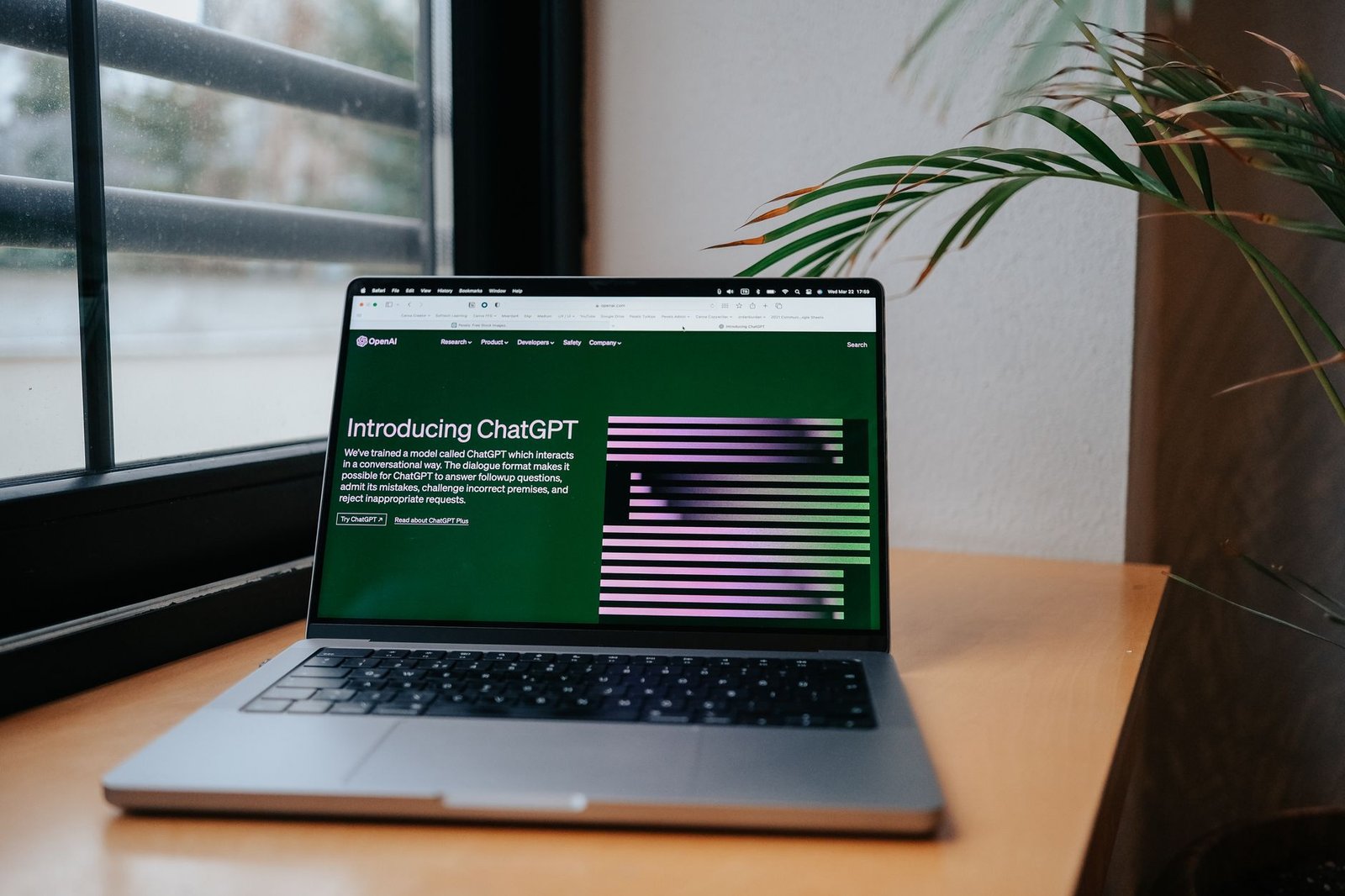
The tool runs on GPT-4, so it's capable of more nuanced output if you give it detailed prompts. The problem is the interface. You're working inside a text box on a design canvas, not a dedicated writing tool with prompt history or refinement options. If you want to iterate on the output, you retype the prompt or manually edit the text. There's no conversation thread, no memory of previous requests, and no way to save prompt templates.
Text to Image produces usable results for abstract concepts and stylized illustrations. I typed "minimalist coffee cup on a wooden table, morning light, soft shadows" and got four variations that all fit the description. The images aren't photorealistic, but they work for social media backgrounds or blog headers where you need something custom and don't have a budget for stock photography.
The 100-image daily limit sounds generous until you account for regenerations. If you don't like the first batch, each retry counts toward your total. I burned through 20 attempts trying to get a specific product mockup to look right. The free plan also caps how many times per month you can access the feature at all, which isn't clearly disclosed until you hit the limit.
Magic Design is hit or miss. When I uploaded a photo of a laptop on a desk, it generated six social post templates with the image positioned well and on-brand color schemes. But when I uploaded a logo and asked for a presentation deck, the layouts were generic and ignored the brand colors entirely. The tool works better with high-quality photos than with logos or text-heavy content.
Who should use Canva's AI features
Small business owners who need social media graphics every week will get the most value. If you're posting to Instagram, Facebook, and LinkedIn regularly and you don't have a designer on staff, Magic Design and Text to Image cut the time from idea to finished post. You can upload a product photo, generate five layouts, pick one, tweak the copy with Magic Write, and export in under ten minutes.
Social media managers at agencies or in-house teams will find the background tools useful. Magic Eraser and Background Remover let you clean up client photos without opening Photoshop. Magic Expand helps when a client hands you a vertical photo but you need a horizontal Facebook cover. These aren't features you'd pay $15 a month for on their own, but bundled with unlimited design templates and brand kits, they justify the Pro upgrade if you're already using Canva daily.
Freelance designers who work with low-budget clients can use the AI tools to speed up the first draft. Magic Design gives you a layout to start from instead of a blank artboard. Text to Image fills placeholder spots when you need a background texture or icon and the client hasn't sent assets yet. You still need to customize everything, but the AI handles the grunt work.
The tools don't make sense for professional studios or agencies working on brand campaigns. The text output is too generic, the image generation lacks the polish for paid ads, and you'll hit creative limits fast. Canva positions these features for speed, not craft.
Where it falls short
The free plan blocks AI access sooner than you expect
Canva's free tier includes some AI features, but the monthly usage caps aren't visible until you exceed them. Magic Write gives you a limited number of uses per month (the exact number fluctuates and isn't published), and once you hit it, you're locked out until the next billing cycle. Text to Image lets you generate 100 images per day, but free users also face a separate monthly feature-access limit. If you're testing the tools to see whether they're worth upgrading for, you'll run out of tries before you can make an informed decision. The pricing page doesn't break down these limits clearly, so you discover them in practice.
Text generation requires heavy editing and lacks context memory
Magic Write runs on GPT-4, but the interface strips out most of what makes GPT-4 useful. There's no chat history, no way to refine a response without retyping the entire prompt, and no ability to give the AI context about your brand or audience. Every request is a one-shot generation. If you ask it to write a blog intro and the result is too formal, you can't say "make it more casual." You either accept the output, manually rewrite it, or delete the text box and start over. For anyone used to ChatGPT or similar tools, this feels like a step backward. The convenience of having AI inside Canva doesn't make up for the lack of iteration controls.
Image generation styles are inconsistent and hard to control
Text to Image doesn't let you pick a specific art style, control the aspect ratio in the prompt, or lock in a visual theme across multiple generations. If you generate an image you like and want three more in the same style, you retype the prompt and hope. Sometimes it works, often it doesn't. The tool also defaults to a safe, semi-realistic style that lands somewhere between stock photography and digital illustration. That's fine for generic social posts, but if you need a specific aesthetic (flat design, watercolor, pixel art), you'll spend more time regenerating than designing. There's no seed control, no style reference uploads, and no negative prompts to exclude unwanted elements.
FAQs
Can I use Canva's AI-generated images commercially?
Yes, images you create with Text to Image fall under Canva's standard content license. If you're on the free plan, you can use them in commercial projects as long as you follow Canva's usage terms. Pro users get an expanded license that covers team use and client work. You own the final design, but Canva retains rights to the underlying AI model output, meaning other users could generate similar images from the same prompt.
Does Magic Write work in languages other than English?
Magic Write supports dozens of languages because it's built on GPT-4, which handles multilingual input well. You can type prompts in Spanish, French, German, and many other languages, and the output will match the input language. Quality varies by language, with English producing the most polished results. Less common languages may return grammatically correct text that still feels machine-translated.
What happens to my AI usage limits if I downgrade from Pro to free?
You immediately lose access to unlimited AI features and revert to the free plan's monthly caps. Any designs you created with Pro-only tools remain in your account and stay editable, but you can't use features like Magic Eraser or Magic Expand unless you upgrade again. Text to Image and Magic Write drop to the free tier's limited monthly uses. If you've already exceeded the free limit in the current month when you downgrade, you'll be locked out until the next cycle.
Can I train Canva's AI on my own brand assets or writing samples?
No. Canva's AI tools don't offer custom training or fine-tuning. You can upload brand colors, logos, and fonts to a Brand Kit, and Magic Design will sometimes use those elements in generated layouts, but the AI doesn't learn your specific visual style or tone of voice. Every Magic Write request starts from scratch with no memory of past outputs or brand guidelines you've provided elsewhere in Canva.
Is there a way to see the exact prompts other users typed to generate public Canva templates?
No. When you browse Canva's template library and find a design that includes AI-generated images or text, the original prompt isn't visible. You can duplicate the template and edit the AI elements, but you won't see what instructions were used to create them. This makes it harder to learn effective prompting strategies from examples in the wild. Canva's community features don't include prompt sharing or a gallery of AI outputs with their source prompts.
Bottom line: Use Canva's AI tools if you're already a Canva Pro user who needs to produce social graphics quickly and you're comfortable editing generic AI output. Skip the upgrade if you need precise control over image styles, nuanced text generation, or unlimited free experimentation - you'll get better results from standalone AI tools and bring the final assets into Canva for layout.